

Introduction
Dixa has implemented a series of end-points to send out proactive WhatsApp messages. By using Meta's template, it's a great channel for transactional messages between you and your end-user.
Requirement
You need a working WhatsApp number configured in Dixa. You can read how to set up WhatsApp in Dixa's documentation
How it works
To start a conversation with your end-users through WhatsApp, you will have to use Meta's template system. It's a system put in place to prevent spam and protect user privacy.
Dixa is communicating with WhatsApp through Twilio, so the templates are actually sitting in Twilio and then syncing to Meta's WABA (WhatsApp Business Account). So don't make changes to your templates in your WABA, as the synchronization is only flowing from Twilio to Meta.
To create templates, we have provided an end-point which creates the template in Twilio, syncs it to Meta, and provides you with a template ID to be used for creating conversations and checking the template's status.
Use cases
Keep reading to understand some of the things you can achieve with the WhatsApp end-points.
Responding to a placed order
In addition to email, you can also send out an order confirmation on WhatsApp.
You will need:
- An approved template
- An order management system that can call APIs
Start by creating the template. You should know its language, name, category, and its content. You can insert variables using a double curly-bracket syntax {{1}}.
Tip: Use variables for things like customer name and order number.
As an example, below is an order confirmation:
Hey {{1}},

Thanks for placing an order, we are happy to help 🎉

We expect your order to arrive by {{2}}

Have a great day!
The first variable {{1}} is the customer name and the second {{2}} is the date of arrival, so the full message would be:
Hey John,

Thanks for placing an order, we are happy to help 🎉

We expect your order to arrive by 2026-10-01

Have a great day!
Before you set up the system, check if the newly created template has been approved using the Get WhatsApp template end-point. Meta's own guidelines on creating templates can be found at their developer pages.
Dixa supports both utility and marketing templates.
When it's approved, you can start the conversation using the POST Create conversation end-point with _type set to "whatsapp".
Conversations created like the one above are open and should be closed to avoid poor SLA. See the example below on how to close a conversation.
curl -X PUT 'https://dev.dixa.io/beta/conversations/{conversationId}/close' \
  -H 'Authorization: <api-key>' \
  -H 'Content-Type: application/json' \
  -d '{
  "userId": "5a556159-9c21-4f3e-a44f-d323deb80d16"
}'
Reminders on upcoming stay
WhatsApp's big benefit is that the conversation between you and your end-user is persistent. For companies in the hospitality space, WhatsApp is a great way to send out reminders with local tips for an upcoming stay.
You will need:
- An approved template
- A booking system that can call APIs
- Scheduled API calls in your booking system
Using your booking system, you send out a reminder to your guests three days before their stay. Because it's the first message, you need to use the POST Create conversation end-point with _type set to "whatsapp".
Tip: Because a WhatsApp conversation is persistent, you can encourage guests to ask their questions in the conversation. Agents working in Dixa will be offered the conversation using the Offer system like other conversations.
Lead the conversation to WhatsApp from a voice conversation
Because WhatsApp is connected to a phone number, there's an opportunity to move the conversation to the WhatsApp channel.
You will need:
- An approved template
We will use Dixa's Automations to orchestrate the invitation to move the conversation to WhatsApp. The idea is that when a voice conversation is closed, the automation will create a WhatsApp conversation to continue the conversation there.
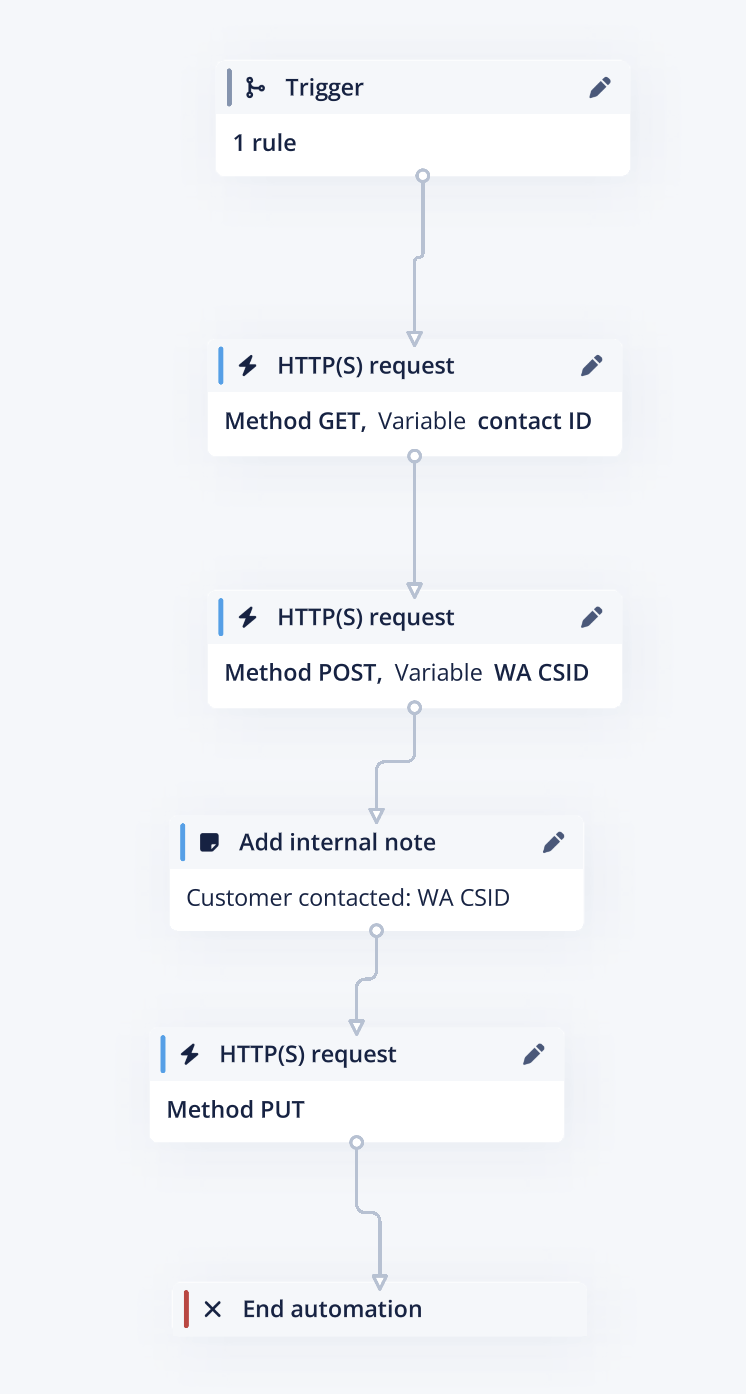
- The trigger: Closed conversation, choosing callback and voice.
- The rule: Change it to apply to queues or tags so that it only runs when you need it.
- 1st HTTPS request node: GET List end users. In the URL
https://dev.dixa.io/beta/endusers?phone=Contact phone, add the Contact phone variable. The output should bedata[0].id; give it a name likerequester ID. - 2nd HTTPS request node: POST Create conversation. In the body, you will use the
requester IDfrom the first HTTPS request node. The output should bedata.id; give it a name likeWhatsApp CSID. - 3rd HTTPS request node: PUT Close conversation. Fill in the
conversationIdas the WhatsApp conversation ID from the 2nd HTTPS node.