

Usage
Configuring DixaMessenger
Configure the DixaMessenger once, when the app launches. Do it in an AppDelegate: it's the one place that runs once at launch, and you'll need it for push notifications too, because iOS delivers the push token only to an AppDelegate.
The example below works for SwiftUI and UIKit apps. In a UIKit app that already has an AppDelegate, add the Messenger.configure call to its didFinishLaunchingWithOptions. A SwiftUI app adds the AppDelegate with @UIApplicationDelegateAdaptor and leaves out @main.
import DixaMessenger
import UIKit

@main
class AppDelegate: UIResponder, UIApplicationDelegate {

    func application(_ application: UIApplication, didFinishLaunchingWithOptions launchOptions: [UIApplication.LaunchOptionsKey: Any]?) -> Bool {

        // Creates a new DixaConfiguration and configures the DixaMessenger client
        let config = DixaConfiguration()
            .logLevel(.all)
            .apikey("<YOUR_DIXA_MESSENGER_TOKEN>")
        #if DEBUG
            // Builds run from Xcode get push notifications from the APNs sandbox - the default is .production
            .pushEnvironment(.sandbox)
        #endif

        Messenger.configure(config)

        return true
    }
}
Configuration options
DixaConfiguration is a value type: each modifier returns a new configuration.
| Modifier | What it sets | Default |
|---|---|---|
apikey(_:) | Your Messenger token. Required | – |
logLevel(_:) | How much the SDK logs to the console. See Log level | .none |
pushEnvironment(_:) | Which APNs environment push notifications come from. See Push environment | .production |
supportedLanguages(_:) | Conversation languages, as two-letter codes. Overrides the languages set in the Dixa Dashboard. The UI language always follows the device settings | Dashboard settings |
Pass the configuration to Messenger.configure(_:). You can also create it in one line with DixaConfiguration(token:logLevel:pushEnvironment:).
Example:
// One line configuration
DixaConfiguration(token: "<YOUR_DIXA_MESSENGER_TOKEN>", logLevel: .error, pushEnvironment: .sandbox)

// Note that the Configuration is a value type, and a new one is returned when calling a convenience modifier
DixaConfiguration()
    .apikey("<YOUR_DIXA_MESSENGER_TOKEN>")
    .logLevel(.error)
    .pushEnvironment(.sandbox) // default .production
    .supportedLanguages(["en", "da"])
Log level
| Level | What's logged |
|---|---|
.none | Nothing |
.error | Critical events only (for example, an invalid Messenger token) |
.warning | Warnings and critical events (for example, a message that failed to send) |
.all | Every valuable event (for example, a message sent), including warnings and errors |
Set it with logLevel(_:) on the configuration you pass to Messenger.configure(_:).
Push environment
| Build | Push environment |
|---|---|
| Run from Xcode (debug) | .sandbox |
| TestFlight and App Store | .production (the default) |
Set .sandbox in debug builds only, as in the AppDelegate example above.
Authentication
You can decide to have your users identified. The SDK supports three authentication modes:
| Mode | How the user is identified |
|---|---|
| Anonymous (default) | Not identified. No user information is shared with the agent |
| Claimed | A username and email supplied by the host app, or entered by the user in a form |
| Verified | A JWE token encrypted with a private key from the Dixa Dashboard |
In the Dixa Dashboard, under Settings > Messenger > (your messenger) > Authentication, Select a method sets how users must be identified before they can start a chat:
| Method in the dashboard | If your app hasn't identified the user |
|---|---|
| Allow anonymous users | Everyone can chat |
| Allow users to claim their identity | The SDK shows a form that asks for a name and email |
| Programmatically authenticate the users | The user can't start a chat |
⚠️ Call order matters:
Messenger.configure(_:)must be called beforeMessenger.updateUserCredentials(username:email:),Messenger.verifyUser(with:)and the clear methods. Configure at app launch, as shown above, so it has always run by the time the user logs in. See Switching users or logging out for the full lifecycle.
Claimed
Authentication is done using a username and email that the host app provides, or, if missing, that the SDK prompts the user to enter via a form.
| Method | What it does |
|---|---|
Messenger.updateUserCredentials(username:email:) | Stores the user's name and email. Safe to call again with the same values. To identify a different user, call clearUserCredentials() first. The email isn't validated |
await Messenger.clearUserCredentials() | Removes the stored name and email. Call it on logout, or before signing in a different user on the same device |
Example: setting claimed credentials after the user signs in to the host app. Messenger.configure(_:) already ran at app launch.
Messenger.updateUserCredentials(username: username, email: email)Verified
Authentication is done using a JWE token, encrypted with a private key from the Dixa Dashboard under Settings > Messenger > (your messenger) > Authentication. The private key is a shared secret, not one half of a key pair: your backend encrypts the token with it and Dixa decrypts it with the same key. Your backend creates the token: see Generating a JWE token. Your app sets it in code; the SDK never asks the user for it.
| Method | What it does |
|---|---|
Messenger.verifyUser(with:) | Stores the user's JWE token |
Messenger.clearVerificationToken() | Removes the stored token. Call it on logout, or before signing in a different user on the same device |
Switching users or logging out
On devices shared by multiple end users — for example, a household device, a kiosk, or a user who signs out and a different user signs in — the SDK retains the previously stored credentials until they are explicitly cleared. Starting a new session without clearing them will attribute the new user's conversations to the previous user.
To correctly hand off to a new user, always clear the previous identity before setting the new one:
- On logout, clear both the stored credentials and the verification token. Each clear method removes only its own kind of identity.
- When the next user signs in, identify them. You don't need to call
configure(_:)again: clearing already starts a new session.
clearUserCredentials() is async, so call it with await, and set the next user's identity only after it returns. Otherwise the SDK still has the previous user's email and ignores the new one.
// On logout from your host app (from any context: the Task runs on the main actor)
Task { @MainActor in
    await Messenger.clearUserCredentials()
    Messenger.clearVerificationToken()
}

// When the next user signs in (on the main actor, for example in your login screen)
Messenger.updateUserCredentials(username: newUsername, email: newEmail)
If your app switches users in one step, do both in the same Task, after the await.
⚠️ Important Note: Clearing credentials also wipes the local conversation history tied to that user. This is intentional — it prevents a new user from reading the previous user's conversations.
💡 A good rule of thumb: treat
Messenger.configure(_:)as an app-lifecycle call (run it once inAppDelegate), and treatupdateUserCredentials/verifyUser/clearUserCredentials/clearVerificationTokenas user-session-lifecycle calls (run them in response to login and logout in your host app).
Launching the Messenger
The Dixa Messenger works with both SwiftUI and UIKit. Add a button to your app that opens it.
| UI framework | Call | Presentation |
|---|---|---|
| SwiftUI | Messenger.openMessenger() | Returns a SwiftUI view: use it as the content of .fullScreenCover or .sheet |
| UIKit | Messenger.openMessenger(from:with:completion:) | Presents the Messenger from your view controller with the UIModalPresentationStyle you pass |
| UIKit | Messenger.openMessenger(from:completion:) | Presents the Messenger full screen |
The UIKit completion is called when the presentation finishes.
Example (SwiftUI apps):
import SwiftUI
import DixaMessenger

struct YourHostingView: View {

    // MARK: - States
    @State var openMessenger: Bool = false

    // MARK: - View
    var body: some View {
        VStack {
            Button {
                openMessenger.toggle()
            } label: {
                Text("Contact Support")
                    .foregroundStyle(.black)
            }
        }
        .fullScreenCover(isPresented: $openMessenger) {

            /// MARK: - Present it
            Messenger.openMessenger()
        }
    }
}

#Preview {
    YourHostingView()
}
Example (UIKit apps):
@objc func contactSupportTapped() {
    Messenger.openMessenger(from: self, with: .pageSheet)
}
Change the widget size
The Messenger opens full screen by default. You can present it as a modal instead.
In SwiftUI, choose the modifier: a sheet, a full screen cover, or a sheet with a specific height (all presentation detents).
.sheet(isPresented: $presentMessenger) {
  Messenger.openMessenger()
}

.fullScreenCover(isPresented: $presentMessenger) {
  Messenger.openMessenger()
}

.sheet(isPresented: $presentMessenger) {
  Messenger.openMessenger()
     .presentationDetents([.medium, .large])
}
In UIKit, pass the style to openMessenger(from:with:completion:) (all modal presentation styles).
Unread messages
⚠️ Deprecated: this API is deprecated.
The SDK offers an option for the hosting application to show how many unread messages there are. The SDK keeps one listener: each call replaces the previous one.
Messenger.unreadMessagesCountListener(completion: @escaping (_ count: Int) -> Void)Push notification handling
DixaMessenger doesn't listen for notifications by itself. Your app sets up push notifications with Apple and in the Dixa Dashboard, then forwards the push token and notifications to the SDK.
Setting up the push notification certificate
-
Enable the Push Notifications capability for your bundle identifier (App ID), in the Apple Developer portal or in Xcode if Xcode manages provisioning for you.
-
Export the certificate in
.p12format. For example, import it into Keychain Access, then export it as.p12. -
Log in to the Dixa Dashboard and choose the organization you're setting up push notifications for.
-
Go to Settings, then Messenger under Channels and flows. Find your messenger in the list and select the settings (cog) icon on its right. This opens the page titled
Messenger > { Messenger name }.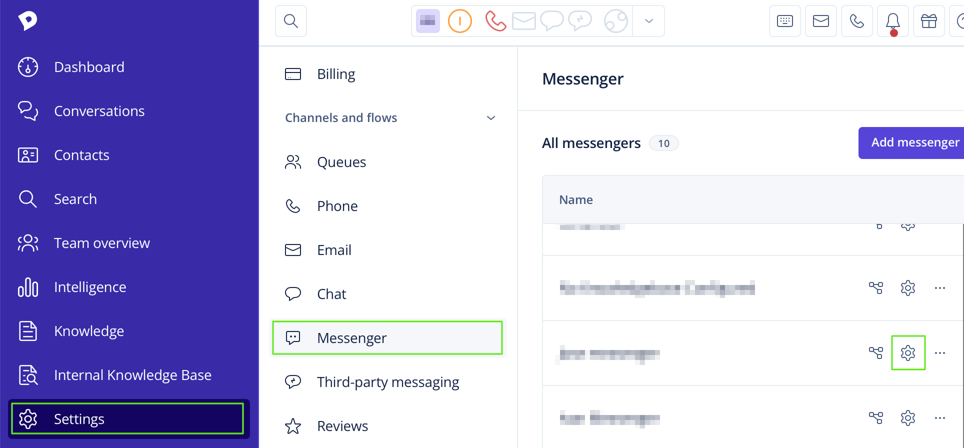
-
Select the Setup tab, then Push notifications.
-
Select Add platform and choose the platform:
Platform Use it for Apple Push Notification serviceTestFlight and App Store builds Apple Push Notification service (Sandbox)Builds run from Xcode with .pushEnvironment(.sandbox)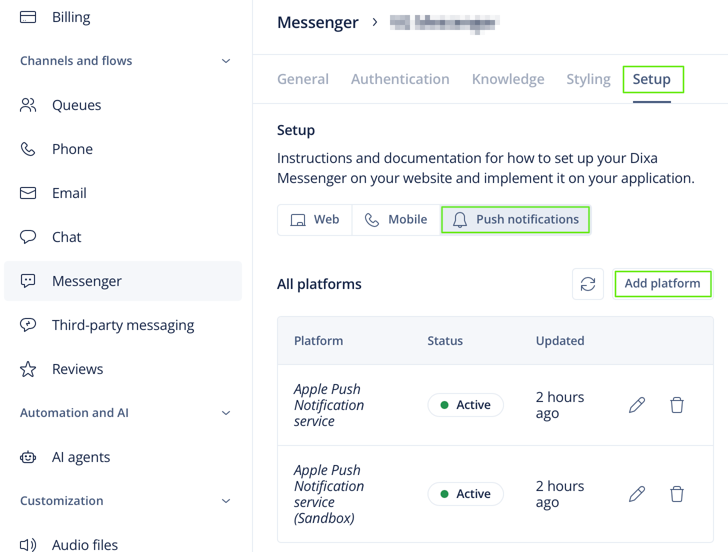
-
Select Choose file and pick your
.p12file. Enter its password if it has one, then select Load credentials from file. The dashboard fills in Certificate and Private key from the file. -
Select Submit platform.
Setting up push notifications in the application
In the app, ask the user for permission to show notifications, register for remote notifications, and forward the push token to the DixaMessenger. It's safe to forward the token before Messenger.configure(_:) has run: the SDK keeps it.
The code below goes in the AppDelegate from Configuring DixaMessenger, so it's the same for SwiftUI and UIKit apps.
func application(_ application: UIApplication, didFinishLaunchingWithOptions launchOptions: [UIApplication.LaunchOptionsKey: Any]?) -> Bool {
    // ... Messenger.configure(config), as in Configuring DixaMessenger

    // Receive willPresent and didReceive (set it before launch finishes, so taps that launch the app arrive too)
    UNUserNotificationCenter.current().delegate = self
    // Without permission, iOS delivers the notification but doesn't show it
    UNUserNotificationCenter.current().requestAuthorization(options: [.alert, .badge, .sound]) { _, _ in }
    // Ask APNs for the device token: it arrives in didRegisterForRemoteNotificationsWithDeviceToken
    application.registerForRemoteNotifications()
    return true
}

func application(_ application: UIApplication, didRegisterForRemoteNotificationsWithDeviceToken deviceToken: Data) {
    Messenger.pushNotification.register(deviceToken: deviceToken)
}
In your UNUserNotificationCenterDelegate, let DixaMessenger check whether each notification is for the Messenger. The check happens in the app.
| Delegate method | SDK call | What your app does |
|---|---|---|
willPresent (app open) | Messenger.pushNotification.presentNotification(_:withCompletionHandler:) returns true for a Messenger notification | Decide how to present it, and call the completion handler in both cases |
didReceive (notification tapped) | Messenger.pushNotification.process(notification:rootViewController:) opens the Messenger and returns true | Pass the view controller that's on screen (in a SwiftUI app, the one SwiftUI hosts your views in; the example finds it for you). If it returns false, handle the notification yourself |
Messenger and Messenger.pushNotification are main-actor isolated (@MainActor). The example below implements the delegate in the AppDelegate, which also runs on the main actor; @preconcurrency lets it compile in Swift 6 mode too.
// MARK: - UNUserNotificationCenterDelegate
extension AppDelegate: @preconcurrency UNUserNotificationCenterDelegate {
    func userNotificationCenter(_ center: UNUserNotificationCenter,
                                willPresent notification: UNNotification,
                                withCompletionHandler completionHandler: @escaping (UNNotificationPresentationOptions) -> Void) {

        // MARK: - Present notification while the app is open
        if Messenger.pushNotification.presentNotification(notification, withCompletionHandler: { _ in }) {
            // From the Messenger
            completionHandler([.banner, .list, .sound])
        } else {
            // Not from the Messenger: present it as your app usually does
            completionHandler([.banner, .list, .sound])
        }
    }

    func userNotificationCenter(_ center: UNUserNotificationCenter,
                                didReceive response: UNNotificationResponse,
                                withCompletionHandler completionHandler: @escaping () -> Void) {

        // MARK: - Push tapped
        if let topViewController = topViewController(),
           Messenger.pushNotification.process(notification: response.notification, rootViewController: topViewController) {
            // The Messenger opened the conversation
        } else {
            // Not from the Messenger: handle it as your app usually does
        }
        completionHandler()
    }

    /// The view controller that's currently on screen.
    private func topViewController() -> UIViewController? {
        let window = UIApplication.shared.connectedScenes
            .compactMap { $0 as? UIWindowScene }
            .flatMap(\.windows)
            .first(where: \.isKeyWindow)
        var top = window?.rootViewController
        while let presented = top?.presentedViewController { top = presented }
        return top
    }
}
Push notification API
| Call | What it does |
|---|---|
Messenger.pushNotification.register(deviceToken:) | Registers the APNs device token with the SDK |
Messenger.pushNotification.presentNotification(_:withCompletionHandler:) -> Bool | True if a notification that arrived while the app is open is for the Messenger. Your app calls the completion handler |
Messenger.pushNotification.process(notification:rootViewController:) -> Bool | If the notification is for the Messenger, opens it from the view controller you pass and returns true |
Uploading photos
To let users upload photos, add the NSPhotoLibraryUsageDescription key and a description to your app's Info.plist.