URL: https://docs.dixa.io/docs/ai-transparency
# AI Voice Watermarking
Dixa's AI voice agent produces synthetic speech on calls. Every vocalization it generates carries an inaudible watermark, so that the audio can later be identified as AI-generated rather than human.
This page is for anyone who needs to establish whether a Dixa call recording contains AI-generated speech. You can upload a recording to get a signed report, and verify a report you have received.
Watermarking supports the transparency obligations that apply to AI-generated audio under Article 50 of the [EU AI Act](https://eur-lex.europa.eu/eli/reg/2024/1689/oj). It covers Dixa's AI voice agent only, and not Dixa's other AI features.
> This page explains how Dixa's watermark works and how to check for it. It's not legal advice on your own obligations under the EU AI Act or any other law. Confirm those with your legal or compliance team.
## Check a recording
Upload a call recording to get a **signed PDF report** that you can keep as an audit record. The report records the verdict, the detection scores for each channel, and the SHA-256 hash of the file you uploaded, which identifies the recording.
Detection needs about 2 seconds of uninterrupted AI speech. In a stereo recording, the watermark is detected if either channel carries it.
### What a report does and does not show
A report states whether Dixa's watermark was detected in the file you uploaded. A positive result indicates that the audio contains speech generated by Dixa's AI voice agent.
A negative result does not establish that the audio is human: the AI speech may be too short to detect, the recording may have been degraded by compression, transcoding or editing, or the audio may come from a source that Dixa does not watermark.
Reports are provided for information and are not a certification or a compliance attestation.
### Before you upload
Call recordings usually contain personal data. By uploading a recording, you confirm that you are entitled to share it with Dixa for this purpose, that you have a lawful basis for the processing, and that your recording disclosures cover this use.
Dixa processes the file in the EU solely to generate the report and deletes it immediately afterwards. The report is returned to your browser and is not retained by Dixa. For Dixa customers, this processing falls under your existing data processing agreement.
> The web page has an interactive form here (AiDetectionForm: endpoint="https://ai-compliance.dixa.io/v1/report-wav" maxFileSizeMb="110"): https://docs.dixa.io/docs/ai-transparency
### Supported format
| Property | Requirement |
| ----------- | ------------------------------ |
| File type | WAV |
| Encoding | 16-bit PCM |
| Sample rate | 8000, 16000, 44100 or 48000 Hz |
| Channels | 1 (mono) or 2 (stereo) |
| Length | At most 10 minutes |
| File size | At most 110 MB |
Many telephony systems save call recordings as WAV files with 8-bit µ-law or A-law encoding, which is not supported. Convert those to 16-bit PCM first.
### Convert a recording
You can convert most recordings with [FFmpeg](https://ffmpeg.org/download.html). To see what format a recording is in, run:
```bash
ffprobe -v error -select_streams a:0 -show_entries stream=codec_name,sample_rate,channels:format=duration -of default=noprint_wrappers=1 recording.wav
```
A supported recording shows `codec_name=pcm_s16le`, one of the supported sample rates, 1 or 2 channels, and a duration of at most 600 seconds.
To convert a recording in another format, such as MP3 or a µ-law WAV, to 16-bit PCM WAV while keeping its sample rate and channels, run:
```bash
ffmpeg -i recording.mp3 -c:a pcm_s16le recording.wav
```
If the sample rate is not supported, add `-ar` with a supported rate:
```bash
ffmpeg -i recording.mp3 -c:a pcm_s16le -ar 16000 recording.wav
```
If the recording is longer than 10 minutes, split it into 10-minute parts and upload each part separately:
```bash
ffmpeg -i recording.wav -f segment -segment_time 600 -c:a pcm_s16le part-%03d.wav
```
AI speech that falls right at the boundary between two parts may be too short to detect in either part.
## Verify a report
Every report is digitally signed by Dixa. Upload a report to check that Dixa signed it and that it has not been changed since. Any change after signing, including added annotations or form fields, makes verification fail.
> The web page has an interactive form here (ReportVerificationForm: endpoint="https://ai-compliance.dixa.io/v1/verify-pdf" maxFileSizeMb="16"): https://docs.dixa.io/docs/ai-transparency
Dixa signs reports with its own certificate rather than one issued by a certificate authority your PDF viewer trusts. If you open a report in Adobe Acrobat Reader or another viewer, it will show the signature as intact but the signer's identity as unknown. This is expected. The form above is the reliable way to confirm that a report comes from Dixa and has not been altered.
> _This page explains how Dixa's watermark works and how to check for it. It is not legal advice on your own obligations under the EU AI Act or any other law. Confirm those with your legal or compliance team._
URL: https://docs.dixa.io/docs/api-standards-rules
# API Standards & Rules
Having clear standards for our Dixa API makes it easier for you as a user to understand its logic and implementation.
Standards make our API more predictable and support intuitiveness, even if these rules are not explicitly stated.
We will give you a short overview of the most important standards we are following.
Overall, the Dixa API follows REST architecture principles, which means that our resources use REST semantics and
industry-standard HTTP verbs, response codes, and authentication schemes. On top of that, all responses and payloads are
in JSON with consistent error codes and formats.
## Authentication
The Dixa API uses bearer token-based authentication. Bearer authentication (or sometimes also called token authentication)
is an HTTP authentication scheme that involves security tokens called bearer tokens. The name "Bearer authentication"
can be understood as "give access to the bearer of this token." The client must send this token in the Authorization header
when making requests to protected resources.
The tokens can be generated through the Dixa interface and placed in the Authentication header while making the requests.
You can learn how to create a token by reading the [Create an API token tutorial](https://docs.dixa.io/docs/tutorial-create-an-api-token.md).
## Rate Limiting
We impose rate-limits per token, which allows for more flexibility.
Each token has the following rate limit:
- **Rate**: 10 requests per second
- **Bursts**: 4 requests
- **Quota**: 864.000 requests per day
In the event your requests exceed the API Rate Limit, a response with HTTP status of 429 Too Many Requests is returned.
URL: https://docs.dixa.io/docs/custom-cards/authorization-oauth
# OAuth
OAuth is an authorization standard widely used among bigger companies like Google, Apple, and Facebook. OAuth offers a higher level of security than tokens because the OAuth tokens are automatically refreshed, and you can limited with a scope.
> Dixa supports **Authorization Code Flow** and **Client Credentials Flow** as OAuth strategies. The third party service determines the choice.
## Prerequisite
* The connecting API must support OAuth 2
* You need to be a workspace admin in Dixa to create a custom card
## Setting up the application
* Because of the secure nature of an OAuth application, it's necessary to configure both sides of the transaction. The third party is the application, and Dixa is the user.
* The Dixa backend handles the grant and can be ignored when configuring OAuth in Dixa.
* Part of the Dixa OAuth feature is to refresh tokens automatically.
### Application with code flow
You will need to obtain the following at the third party for an authorization code flow:
* client ID
* client secret
* Scope
* Authorization Endpoint
* Token Endpoint
Applications will ask for a redirect URL, which is always the same for Dixa custom cards. Insert the following into the third-party setup:
```
https://partner-integrations.dixa.io/auth/provider/callback
```
A scope can limit access to areas of an API. If you take Google as an example, a scope for their calendar will look like this:
`https://www.googleapis.com/auth/calendar.readonly`
And with Hubspot, a scope for OAuth and CRM objects looks like this:
`oauth crm.objects.contacts.read`
The third-party typically generates the client ID and secret, which are unique in syntax and length.
#### Set up Dixa
In Dixa, we must match the scope, client ID, and secret from the third party.
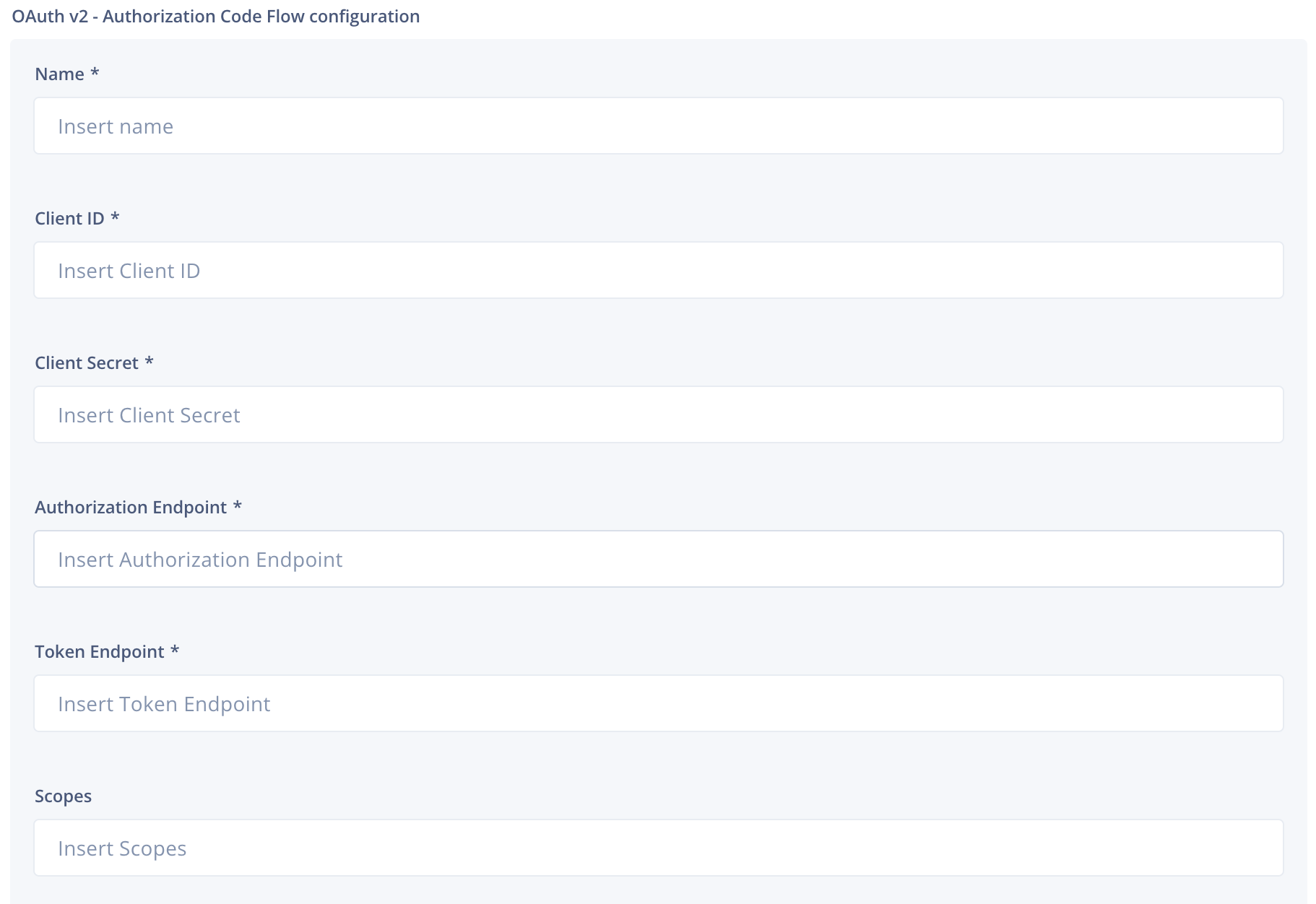
The third party defines the authorization and token endpoints and can usually be found in the documentation or when configuring the token/app.
After you have populated the necessary fields, you save the information by clicking **Save configuration** and then proceed by selecting **Authorize**. A pop-up will open asking you to sign in (if you're not already signed in with the third party). You must click on both the **Save configuration** and **Authorize** buttons.
### Application with credential flow
--------------------------------
Because of the secure nature of an OAuth application, it's necessary to configure both sides of the transaction. The third party is the application, and Dixa is the user.
You will need to obtain the following at the third party for a credential code flow:
* client ID
* client secret
* Authorization Endpoint
* Token Endpoint
* Scope
* Audience
Applications will ask for a redirect URL, which is always the same for Dixa custom cards. Insert the following into the third-party setup:
```
https://partner-integrations.dixa.io/auth/provider/callback
```
A scope can limit access to areas of an API. If you take Google as an example, a scope for their calendar will look like this:
`https://www.googleapis.com/auth/calendar.readonly`
And with Hubspot, a scope for OAuth and CRM objects looks like this:
`oauth crm.objects.contacts.read`
The third-party typically generates the client ID and secret, which are unique in syntax and length.
The audience should be referencing Dixa.
### Set up Dixa
In Dixa, we must match the scope, client ID, and secret from the third party.
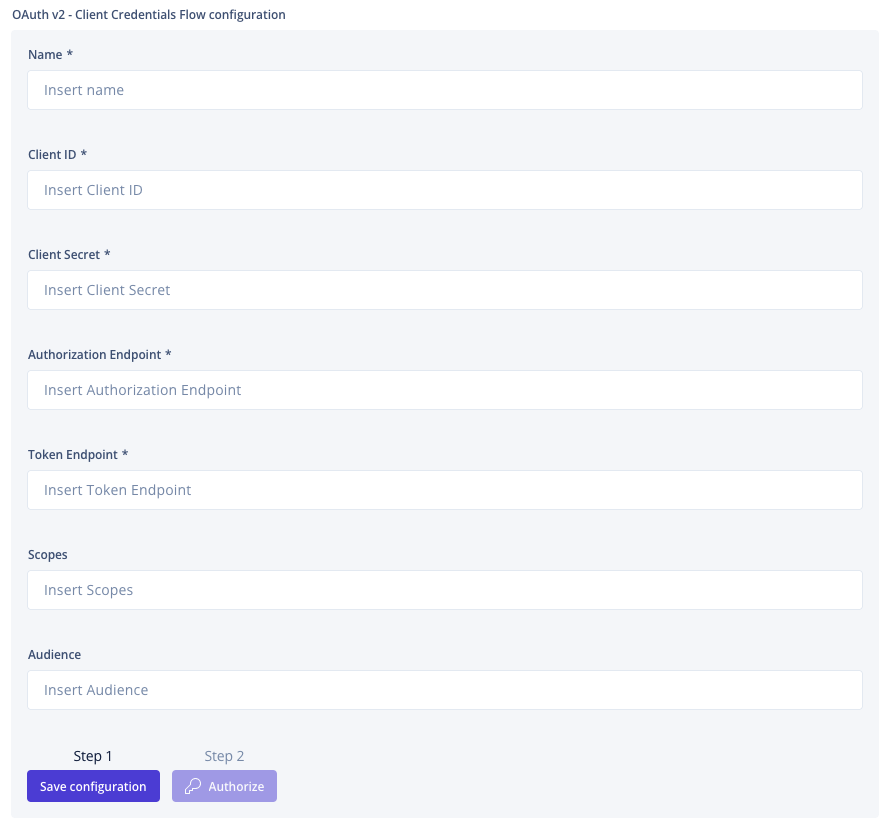
The third party defines the **Authorization Endpoint** and **Token Endpoint**. Both can usually be found in their documentation.
**Scope** and **Audience** are optional for an OAuth flow but can be required from a third party. [Auth0](https://community.auth0.com/t/what-is-the-audience/71414), [Ory](https://www.ory.sh/docs/hydra/guides/audiences), and [MojoAuth](https://mojoauth.com/glossary/jwt-audience/) have great reads on their implementation of the audience, which can be used to get a better understanding.
After you have populated the necessary fields, you save the information by clicking **Save configuration** and then proceed by selecting **Authorize**. A pop-up will open asking you to sign in (if you're not already signed in with the third party). You must click on both the **Save configuration** and **Authorize** buttons.
URL: https://docs.dixa.io/docs/custom-cards/authorization
# Authorization
You don't get to choose the authorization method, it is defined by the endpoint. When you look at the endpoint documentation, you can normally find a section called authorization or authentication. You can look for a page called authentication or authorization. Custom cards support the default 'Authorization' header or custom headers.
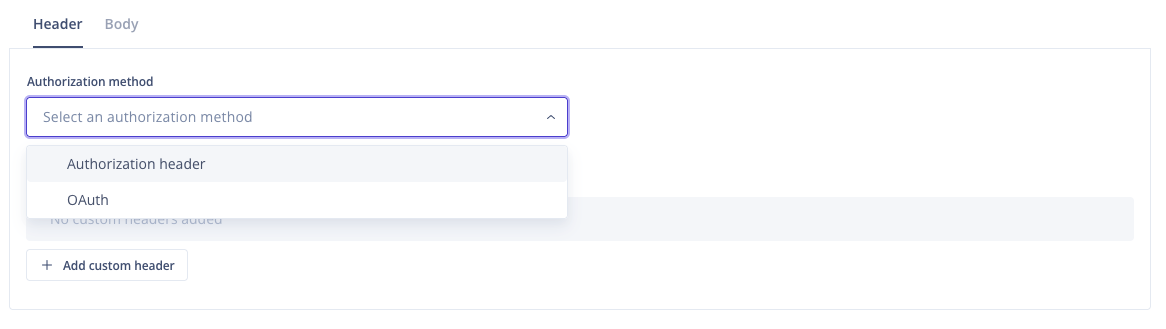Showing the choice between OAuth or Authorization header.
## Authorization header
If you select the **Authorization header**, you must choose either **Basic, Baerer,** or **Custom** in the **Authorization header** dropdown**.**
- With the **Basic** authorization, you will be asked to provide the user and password required for the 3rd party API (the information will be encoded in base64 and [passed to the 3rd party](https://en.wikipedia.org/wiki/Basic_access_authentication)).

- If you select the **Bearer** authorization type, then you will be required to specify the token from the third-party API (the information [will be passed with the Bearer prefix](https://swagger.io/docs/specification/authentication/bearer-authentication/))

- If you select the **Custom** Authorization type, you can specify the prefix to be used inside the Authorization header.

## Custom header
If the API you are connecting to requires additional or alternative headers (like **x-api-key** for an Amazon-hosted system), then you can use the Custom Header option to add additional key-value headers.
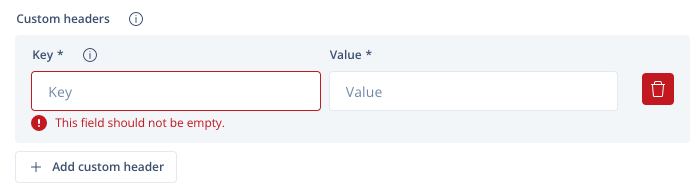
Depending on your system's authorisation needs, custom headers can be used in addition or as a replacement for Authorization headers.
URL: https://docs.dixa.io/docs/custom-cards/custom-body
# Custom Body
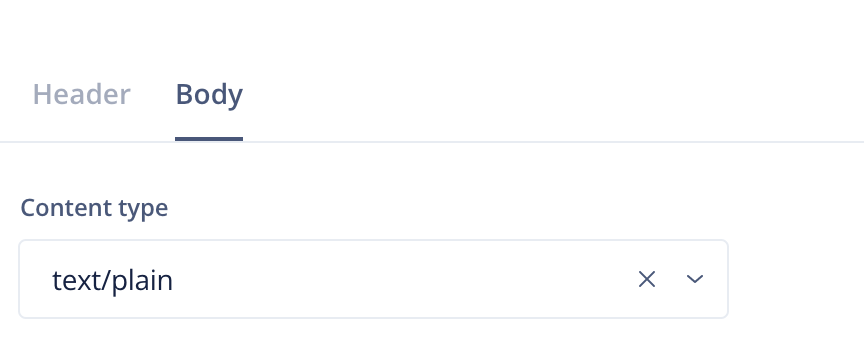
DELETE, POST, and PUT methods require a body, and those can be multiple lines long because of the mandatory input, like our own [Create Conversation](https://docs.dixa.io/openapi/dixa-api/v1/conversations/postconversations.md). When editing a custom card, there's a **Body** tab to help with the problem.
This is the Dixa example of a request to create a conversation using the curl command.
```
curl -i -X POST https://dev.dixa.io/v1/conversations \
-H 'Authorization: YOUR_API_KEY_HERE' \
-H 'Content-Type: application/json' \
-d @- <<'EOF'
{
"requesterId": "9c2a2cce-699f-4a72-89d9-fda5bc8dec8b",
"emailIntegrationId": "my-integration@email.dixa.io",
"subject": "order #123",
"message": {
"content": {
"value": "My order hasn't shipped",
"_type": "Text"
},
"attachments": [],
"_type": "Inbound"
},
"language": "en",
"_type": "Email"
}
EOF
```
The -d parameter indicates the body of the request. In this example, it is a JSON string, but it is possible to specify a body type in other formats, like plain text, CSV, HTML and form URL encoded.
The body type should be selected accordingly in the **Content-Type** field.
Following this example, you must select "application/json" in the **Content Type** dropdown and then insert the request in the **Body** field the content between single quotes that come after the body (-d) parameter of the curl request (i.e. taking everything starting from the first curly bracket {...} to the last, brackets included).
Additionally, you can use [placeholders](https://docs.dixa.io/docs/custom-cards/placeholders.md) to have dynamic bodies.
URL: https://docs.dixa.io/docs/custom-cards/displaying-information
# Displaying Information
The template can be written in HTML and supports [Liqp](https://github.com/bkiers/Liqp) (version 0.8.3.3), which is a Java implementation of [Liquid](https://shopify.github.io/liquid/). Additionally, it's possible to mix Liquid and HTML in the **Template content** to display the information from the data source.
## HTML
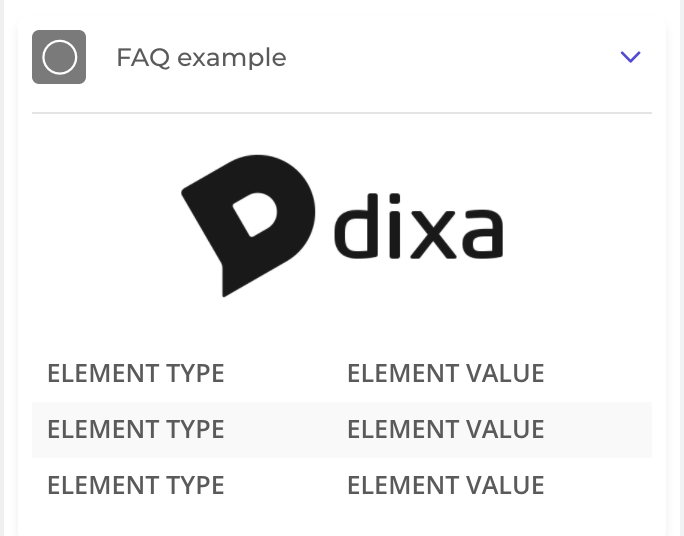
Here's an example template:
```html
ELEMENT TYPE
ELEMENT VALUE
ELEMENT TYPE
ELEMENT VALUE
ELEMENT TYPE
ELEMENT VALUE
```
If you decide to use the template, replace "IMAGEHERE" with a link to your logo and place data where you see the block of `
` (table row). This is what it would look like in this phase:
## Liquid
You can use [Liquid markup](http://liquidmarkup.org/) to display data. For example, if your webhook URL responds with the following JSON:
```json
{
"results":{
"name":"Dixa",
"vertical":"SaaS",
"revenue":3000.22
}
}
```
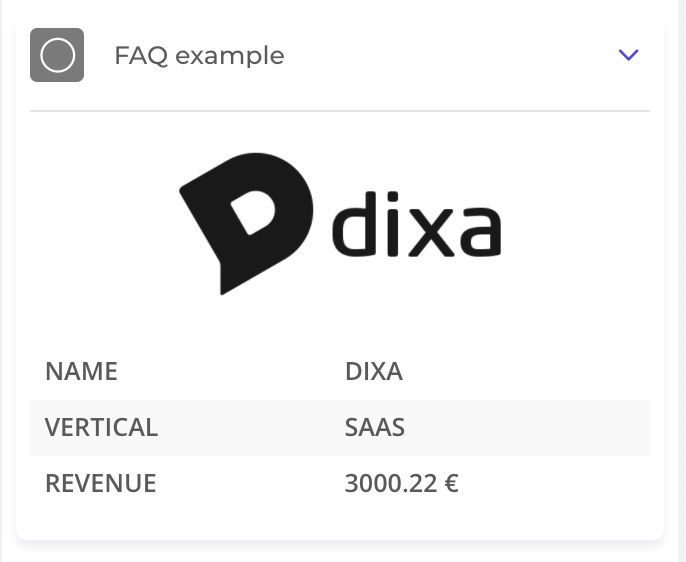
You could use `{{ results.name }}` to display "Dixa" in your custom card. Likewise, `{{ results.revenue }}` would display 3000.22.
If you'd only want to show the revenue if it's under 9000, you could do `{% if results.revenue < 9000 %} {{ results.revenue }} {% endif %}`
After adding data, the end result should be something like this:
URL: https://docs.dixa.io/docs/custom-cards
# Custom Cards
With Custom Cards, you can display information from external sources (like your CRM system) in the conversation view in Dixa, so the agent has all the necessary information available to them without switching between systems. All you need to do is add some code.
You can add multiple Custom Cards.
You can get information by searching for the customer's email address and/or phone number ([E.164 format](https://en.wikipedia.org/wiki/E.164)). To give some examples, we see customers using Custom Cards for:
* Order history
* Shipping status of the latest purchase
* Subscription status
* Invoice history
The possibilities are virtually endless.
The card is used to fetch data from an HTTP API, and you must add an HTTPS API endpoint to the hook URL with the default port 443 exposed, with a JSON payload response.
**Adding a Custom Card in Dixa**
Go to **Settings** -> **Integrations** -> **Custom Cards**
1. Enter a **Title** for the Custom Card. This will be the header in the _conversation view._
2. Enter the **Hook URL** (the URL to the endpoint you want to fetch data from) and choose the request **method**.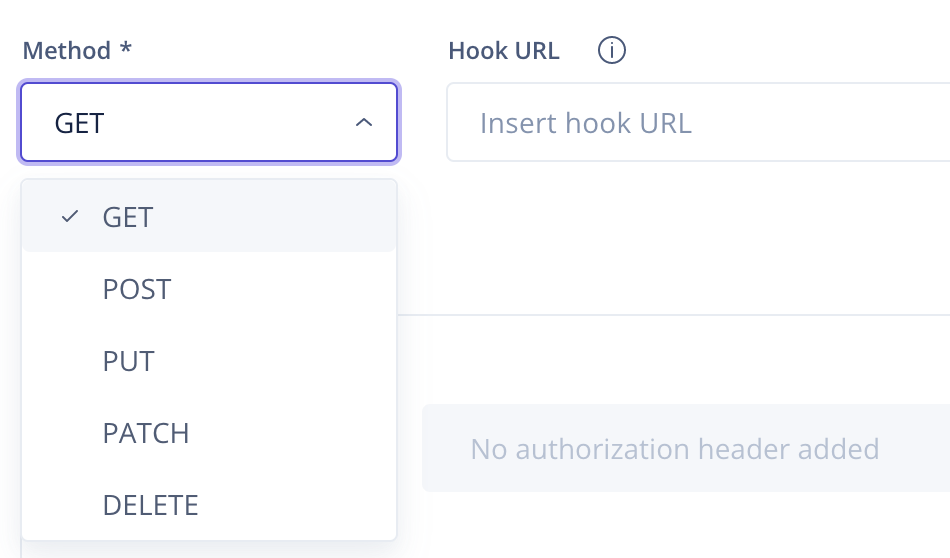
3. (optional) Add an [Authorization method](https://docs.dixa.io/docs/custom-cards/authorization.md) or an [OAuth authorization](https://docs.dixa.io/docs/custom-cards/authorization-oauth.md) if the endpoint requires it.
4. If everything is filled in correctly, your request returns a data object. And it's time to fill out the data template to display the conversation every time it is opened. [You can read about displaying data by following the link](https://docs.dixa.io/docs/custom-cards/displaying-information.md).
5. You can use placeholders in the **Hook URL, headers,** and **request body**. Placeholders change per conversation. If a customer emails your agents, insert `{{a_email}}` to the hook URL, and it will be changed to `customer@email.com` in the conversation. [You can find a list with descriptions of each placeholder here.](https://docs.dixa.io/docs/custom-cards/placeholders.md)
6. [Follow the link for tips and tricks](https://docs.dixa.io/docs/custom-cards/tips-and-tricks.md).
URL: https://docs.dixa.io/docs/custom-cards/placeholders
# Placeholders
You can use **placeholders** in the **Hook URL, headers** and **body** of the request. The following placeholders are available:
| **Variable** | **Description** | Available channels |
|---|---|---|
| {{calling\_phone\_number}} | The calling phone number | `voice`, `sms` and `whatsapp` conversations\* |
{{called\_phone\_number}} | The called phone number | `voice`, `sms` and `whatsapp` conversations\* |
|{{customer\_phone\_number}} | The customer's phone number | `voice`, `sms` and `whatsapp` conversations\*
|{{agent\_phone\_number}} | The agent's phone number | `voice`, `sms` and `whatsapp` conversations\*
| {{a\_phone\_number}} | Caller’s phone number | originating number, and for non-voice channels, the requester's phone number if known
| {{b\_phone\_number}} | The destination's number (typical your organization number) | `voice`, `sms` and `whatsapp` conversations\*
| {{widget\_id}} | The Dixa chat Widget ID | Legacy Chat (not available on Dixa Messenger)
|{{facebook\_page\_id}} | The Facebook Page ID | `facebook` conversations\*
| {{sending\_email}} | The sending email | `email` and `contactform` conversations\*
| {{receiving\_email}} | The receiving email | `email` and `contactform` conversations\*
| {{agent\_email}} | The assigned agent's email | all
| {{customer\_email}} | The customer's email | `email`, `contactform`, and `chat` conversations\*
|{{a\_email}} | The sender's email address | for non-email address based channels, the requester's email if known
| {{b\_email}} | The receiver’s email address | `email` conversations\*
| {{csid}} | The conversation id in Dixa | all
| {{customer\_external\_id}} | The external id of a customer | Available for all channels, if `externalId` was provided programatically for the requester/enduser.
(\*) Variables which have any invalid URL characters (eg. @ in email or + in phone number already **encoded for query string parameters** (as an example \``?email={{a_email}}`) if you use it in the hook URL. Being compliant with [RFC 3986](https://tools.ietf.org/html/rfc3986#section-3.3) encoding should not be applied if variable is a part of a path (as an example `/test/{{a_email}}`).
If the Hook URL contains any static query parameters, their values must be encoded with URL encoding.
`voice` in the above table means channels using Dixa telephony, such as callbacks, voicemail and inbound/outbound phone calls.
URL: https://docs.dixa.io/docs/custom-cards/tips-and-tricks
# Tips & Tricks
## Wrapped in an iframe
Each Custom Card is wrapped in a sandboxed iframe. This means each card is completely isolated from the Dixa interface and any other custom card.
> 💡 It's possible to execute JavaScript in the custom card, eg, fetching data, validating input, etc, as well as use CSS to style the card.
> ⚠️ It's also possible to create endless loops when writing JavaScript, thus making the interface unresponsive.
> ⚠️ When fetching data using JavaScript (with eg, [Fetch API](https://developer.mozilla.org/en-US/docs/Web/API/Fetch_API)), please be aware of [CORS](https://developer.mozilla.org/en-US/docs/Web/HTTP/CORS/Errors) on the receiving endpoint.
## Restricting access to the API endpoint
Dixa makes all requests to your "Hook URL" server-side. This means you can IP allowlist the IP addresses we use to access data on your endpoint as an additional security measure.
We currently pool through 3 IP addresses when making requests from the Dixa platform:
* 52.17.249.106/32
* 54.77.120.43/32
* 34.251.109.243/32
## Multiple custom cards
It is possible to add multiple Custom Cards.
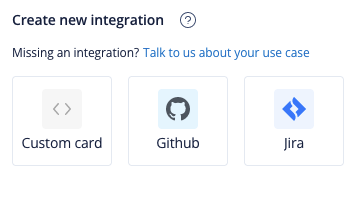
Go to **Settings**, **Integrations**, select **Custom Cards,** and "**Add custom card**".
## Icon
You can add some personal flair or easy identification of custom cards by uploading an icon. The icon will be shown in custom card's own settings page, the integration overview and in the conversation sidebar. By using icons you can easily find the right card even if it's collapsed.
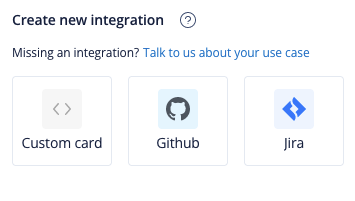
Go to **Settings** and **Integrations**, from the settings overview you can make a new custom card by selecting **Custom card** from the **Create new integration** section and from here you'll find an **Upload icon** button. Click it and select the appropriate file on your machine.
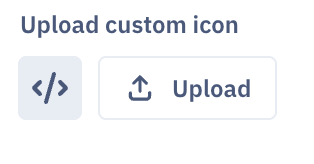
The same steps can be done to an existing custom cards.
## Sorting custom cards
By default, custom cards are sorted alphabetically. So if you have multiple custom cards that you want to display in a specific order, you can prefix the name of the custom card (Eg, 0\_Order Status, 1\_Booking Information)
Please note that sorting applies only to custom cards and the older generation of native integrations (Shopify 1.0, Magento, Salesforce). New-generation native integrations, such as Jira, GitHub, Linear, and Shopify (2.0), are also sorted alphabetically and will always be displayed above any custom cards.
## Timeout
Custom cards have a timeout of 10 seconds (10,000 ms), which, if encountered, will be presented with the following error:
> TCP idle-timeout encountered for Custom / Conversation Card
## Fullscreen
If you need full screen to get a good look at media sent in through forms, it's nice to use your monitor's full capacity.
We allow [requestFullscreen()](https://developer.mozilla.org/en-US/docs/Web/API/Element/requestFullscreen) from our Custom cards.
URL: https://docs.dixa.io/docs/dixamcp/dixa-mcp
# Dixa MCP Server - Getting Started
Connect your AI assistant to your Dixa account and access your customer service data directly through AI conversations.
## Beta Disclaimer
This project is currently in beta and provided as-is.
By using this repository, you acknowledge that:
- It may contain bugs, incomplete features, or breaking changes
- Usage is entirely at your own risk
- This is an open-source project and is **not supported by Dixa's official support channels**
For issues or contributions, please use [GitHub Issues](https://github.com/Dixa-public/dixa-mcp-public/issues).
## What is the Dixa MCP Server?
The [Dixa MCP Server](https://github.com/Dixa-public/dixa-mcp-public) is a Model Context Protocol (MCP) server that connects your AI assistant to your Dixa organization. Ask questions about your conversations, agents, customers, and analytics - all through natural conversation with your AI assistant.
**What you can do:**
- Search and analyze conversations
- Get information about agents, teams, and queues
- View customer (end user) details and conversation history
- Access analytics and metrics
- Manage tags, notes, and conversation assignments
- And much more!
## Quick Start
The easiest way to get started is using our hosted server. This requires no local setup - just configure your AI client and you're ready to go.
### Step 1: Get Your Dixa API Key
You'll need a Dixa API key before connecting to any AI client. See [How to get access to the Dixa API](https://docs.dixa.io/docs/tutorial-create-an-api-token.md) for instructions.
### Step 2: Configure Your AI Client
Choose your AI client from the options below and follow the setup instructions:
- [Claude Desktop](#claude-desktop)
- [Cursor](#cursor)
### Step 3: Start Using It!
Once configured, you can start asking questions about your Dixa data:
- "How many conversations were closed last week?"
- "Show me conversations from agent John Smith"
- "What's the average response time for email conversations?"
- "List all active agents in the organization"
Your AI assistant will use the Dixa MCP server to fetch the information and provide you with answers.
## Client Setup Guides
### Claude Desktop
Follow these steps to connect Claude Desktop to the Dixa MCP server:
1. **Open Claude Desktop Configuration File**
- **macOS**: Open `~/Library/Application Support/Claude/claude_desktop_config.json`
- **Windows**: Open `%APPDATA%\Claude\claude_desktop_config.json`
You can open this file with any text editor.
2. **Add the Dixa MCP Server Configuration**
Add the following configuration to your `claude_desktop_config.json` file:
```json
{
"mcpServers": {
"dixa": {
"command": "npx",
"args": [
"mcp-remote",
"https://dixa-mcp-public.fastmcp.app/mcp",
"--header",
"Authorization: Bearer YOUR_API_KEY_HERE"
]
}
}
}
```
**Important**: Replace `YOUR_API_KEY_HERE` with your actual Dixa API key from Step 1.
3. **Save the Configuration File**
Make sure to save the file after making changes.
4. **Restart Claude Desktop**
Close and restart Claude Desktop completely for the changes to take effect.
5. **Verify the Connection**
After restarting, you should see the Dixa MCP server available in Claude Desktop. You can now start asking questions about your Dixa data!
**Note**: If you already have other MCP servers configured, add the `"dixa"` entry to the existing `"mcpServers"` object without removing your other configurations.
### Cursor
Follow these steps to connect Cursor to the Dixa MCP server:
1. **Open Cursor Settings**
- Open Cursor IDE
- Press `Cmd+,` (macOS) or `Ctrl+,` (Windows/Linux) to open Settings
- Alternatively, go to **Cursor** → **Settings** (macOS) or **File** → **Preferences** → **Settings** (Windows/Linux)
2. **Access MCP Configuration**
- In Settings, search for "MCP" or navigate to **Features** → **MCP**
- Click on **Edit MCP Settings** or open the MCP configuration file
3. **Add Dixa MCP Server Configuration**
Add the following configuration:
```json
{
"mcpServers": {
"dixa": {
"command": "npx",
"args": [
"mcp-remote",
"https://dixa-mcp-public.fastmcp.app/mcp",
"--header",
"Authorization: Bearer YOUR_API_KEY_HERE"
]
}
}
}
```
**Important**: Replace `YOUR_API_KEY_HERE` with your actual Dixa API key from Step 1.
4. **Save the Configuration File**
Make sure to save the file after making changes.
5. **Restart Cursor**
Close and restart Cursor completely for the changes to take effect.
6. **Verify the Connection**
After restarting, the Dixa MCP server should be available in Cursor. You can test it by asking Cursor questions about your Dixa data in the chat interface.
**Note**:
- If you already have other MCP servers configured, add the `"dixa"` entry to the existing `"mcpServers"` object without removing your other configurations.
- The exact configuration file location may vary depending on your Cursor version. If you can't find the MCP settings, check Cursor's documentation or look for MCP-related settings in the Settings UI.
## Server Endpoint
All clients connect to the same hosted server endpoint:
**Server URL**: `https://dixa-mcp-public.fastmcp.app/mcp`
**Authentication**: Include your Dixa API key in the Authorization header:
```
Authorization: Bearer YOUR_API_KEY_HERE
```
## What Can You Do?
The Dixa MCP Server provides access to 79 different tools organized into categories:
### 📊 Analytics
- Get aggregated metrics and statistics
- Analyze conversation data
- View performance metrics
### 💬 Conversations
- Search and filter conversations
- View conversation details, messages, and notes
- Manage conversation assignments and tags
- Add notes and update conversation status
### 👥 Agents & Teams
- View agent information and presence status
- Manage team memberships
- View team performance
### 👤 Customers (End Users)
- View customer profiles
- See conversation history per customer
- Manage customer information
### 🏷️ Tags & Organization
- List and manage tags
- Organize conversations with tags
- View organizational structure
### 📚 Knowledge Base
- Access knowledge base articles
- Manage article categories
### ⚙️ Settings
- View contact endpoints (channels)
- Check business hours status
- View queue information
## Example Use Cases
### Daily Standup Questions
- "How many conversations did we handle yesterday?"
- "What's our current queue status?"
- "Show me conversations that need follow-up"
### Agent Performance
- "Which agents handled the most conversations this week?"
- "Show me conversations assigned to the support team"
- "What's the average response time for our agents?"
### Customer Insights
- "Find all conversations from customer John Doe"
- "Show me conversations with high satisfaction ratings"
- "List customers who contacted us via email last month"
### Analytics & Reporting
- "What's our CSAT score for the last quarter?"
- "How many conversations were closed vs. opened this week?"
- "Show me conversation trends by channel"
## Data Security
- **HTTPS Encryption**: Your API key and all data are sent securely via HTTPS encryption
- **No Data Storage**: No data is stored on the MCP server - it acts as a secure proxy between your AI client and Dixa. However, please note that your LLM provider (OpenAI, Anthropic, Google, etc.) may store or use your data for training purposes depending on your subscription plan. We recommend checking with your LLM provider regarding their data storage and training policies, as this typically varies based on your paid package tier.
- **Direct Connection**: All requests go directly from your AI client to your Dixa account through the MCP server
- **API Key Protection**: Your API key is only used to authenticate with the Dixa API and is never logged or stored
## Troubleshooting
### AI client doesn't show the Dixa server
1. Make sure you saved the configuration file correctly
2. Restart your AI client completely
3. Check that your configuration syntax is valid (JSON format, no trailing commas, proper quotes)
4. Verify your API key is correct
5. Ensure you're using the correct server URL: `https://dixa-mcp-public.fastmcp.app/mcp`
### "Authentication failed" errors
1. Verify your API key is correct
2. Make sure there are no extra spaces in your API key
3. Check that your API token hasn't expired in Dixa
4. Ensure the API token has the necessary permissions
5. Verify the Authorization header format: `Authorization: Bearer YOUR_API_KEY`
### Can't find conversations or data
1. Verify your API key has access to the data you're requesting
2. Check that the data exists in your Dixa account
3. Try using more specific search terms
4. Ensure your API token has the required permissions in Dixa
### Connection issues
1. Verify your internet connection
2. Check that the server URL is accessible: `https://dixa-mcp-public.fastmcp.app/mcp`
3. Ensure your firewall isn't blocking the connection
4. Try testing the connection with a simple request
## Need Help?
- **Dixa API Reference**: [https://docs.dixa.io/openapi/](https://docs.dixa.io/openapi.md)
- **Dixa MCP Server Repository**: [https://github.com/Dixa-public/dixa-mcp-public](https://github.com/Dixa-public/dixa-mcp-public)
- **FastMCP Documentation**: [https://gofastmcp.com](https://gofastmcp.com)
- **MCP Documentation**: [https://modelcontextprotocol.io](https://modelcontextprotocol.io)
## Other Setup Options
If you prefer to run the server yourself, we also support:
- **Local Setup**: Run the server on your own machine
- **Self-Hosted**: Deploy the server on your own infrastructure
For technical details and advanced configuration options, see the [Dixa MCP public repository](https://github.com/Dixa-public/dixa-mcp-public).
## License
This project uses FastMCP and integrates with the Dixa API. Please refer to the respective documentation for licensing information.
URL: https://docs.dixa.io/docs/dixamessenger/android/installation
# Installation
Enhance your Android app with the ability to interact directly with users by integrating the Dixa Messenger SDK.
## Requirements
| Requirement | Details |
| --- | --- |
| Android | API 23 (Android 6.0, Marshmallow) |
| `compileSdk` | 34 recommended: the SDK is built against API 34 |
| Core library desugaring | Required if your app's `minSdk` is below 26. See [Required desugaring support](#required-desugaring-support) |
| Firebase Cloud Messaging | Only for push notifications. See [Push notification handling](https://docs.dixa.io/docs/dixamessenger/android/usage.md#push-notification-handling) |
| Messenger token | An admin can find it in the Dixa Dashboard under `Settings > Messenger > (your messenger) > Setup` |
## Support matrix
Each SDK version is built with the following versions of the Android Gradle Plugin (AGP) and Kotlin. Your app can use these versions or newer ones.
| SDK Version | AGP Version | Kotlin Version |
| ------------- | ----------- | -------------- |
| 1.7.2 and later | 7.2.1 | 1.8.22 |
| 1.7.1 | 8.9.2 | 2.0.21 |
| 1.4.2 - 1.6.2 | 7.2.1 | 1.8.0 |
> ⚠️ **Important**: To ensure ongoing security and compatibility, the SDK may periodically raise its minimum required Kotlin and AGP versions. This helps prevent known vulnerabilities and align with modern Android tooling.
## Install Dixa Messenger
The SDK is hosted on Maven Central. New Android Studio projects already declare Maven Central in `settings.gradle.kts`. If yours doesn't, add it:
```kotlin
// settings.gradle.kts
dependencyResolutionManagement {
repositories {
google()
mavenCentral()
}
}
```
Then add the SDK to the dependencies of your app module. Replace `` with the latest version from the [release notes](https://docs.dixa.io/docs/dixamessenger/android/release-notes.md) or [Maven Central](https://central.sonatype.com/artifact/com.dixa/messenger-sdk).
```kotlin
// app/build.gradle.kts
dependencies {
implementation("com.dixa:messenger-sdk:")
}
```
If your project uses Groovy build files:
```groovy
// app/build.gradle
dependencies {
implementation 'com.dixa:messenger-sdk:'
}
```
## Required desugaring support
The SDK uses Java 8+ APIs such as `java.time`. If your app's `minSdk` is below 26, enable core library desugaring in your app module. Without it, the app builds but crashes at runtime on Android 6.0 to 7.1 (API 23 to 25).
```kotlin
// app/build.gradle.kts
android {
compileOptions {
isCoreLibraryDesugaringEnabled = true
}
}
dependencies {
coreLibraryDesugaring("com.android.tools:desugar_jdk_libs:2.1.5")
}
```
Groovy:
```groovy
// app/build.gradle
android {
compileOptions {
coreLibraryDesugaringEnabled true
}
}
dependencies {
coreLibraryDesugaring 'com.android.tools:desugar_jdk_libs:2.1.5'
}
```
> ☝️ **Note**: `desugar_jdk_libs` 2.x needs AGP 7.4 or newer. With an older AGP, use version `1.1.5`.
## Snapshots
Snapshots provide early access to the latest features and fixes. Keep in mind that while they offer the newest changes, they may not always be as stable as the official releases.
To use a snapshot version, add the Maven Central snapshot repository:
```kotlin
// settings.gradle.kts
dependencyResolutionManagement {
repositories {
maven {
url = uri("https://central.sonatype.com/repository/maven-snapshots/")
mavenContent { snapshotsOnly() }
}
}
}
```
Then depend on the snapshot version:
```kotlin
// app/build.gradle.kts
dependencies {
implementation("com.dixa:messenger-sdk:-SNAPSHOT")
}
```
Replace `` with the version of the snapshot you wish to use.
> ⚠️ **_Caution_**: Snapshot versions are for testing the very latest developments and may not be stable for production use.
URL: https://docs.dixa.io/docs/dixamessenger/android/overview
# Overview
## About
The Dixa Messenger Android SDK facilitates the integration of [Dixa Messenger](https://www.dixa.com/product/dixa-messenger/) into Android applications, enabling developers to embed rich messaging capabilities within their mobile platforms.
## Before you start
You need your Messenger token. An admin can find it in the Dixa Dashboard under `Settings > Messenger > (your messenger) > Setup`. Push notifications are set up in the same place, under `Push notifications`.
A basic integration takes about 15 minutes. Push notifications take longer, because they also need a Firebase project.
## Guides
- [Installation](https://docs.dixa.io/docs/dixamessenger/android/installation.md): requirements and adding the SDK to your app.
- [Usage](https://docs.dixa.io/docs/dixamessenger/android/usage.md): configuring the SDK, identifying users, opening the Messenger, unread messages and push notifications.
- [Release notes](https://docs.dixa.io/docs/dixamessenger/android/release-notes.md): what changed in each version.
## Compatibility
The SDK supports Android API level 23 (_Android 6.0_ - _Marshmallow_) and higher. See [Installation](https://docs.dixa.io/docs/dixamessenger/android/installation.md#requirements) for the full list of requirements.
URL: https://docs.dixa.io/docs/dixamessenger/android/release-notes
# Release notes
## 2.2.9 (latest)
### Maintenance:
- No functional changes.
## 2.2.8
### Bug Fixes:
- The "Find articles" button no longer appears for organizations without a knowledge base.
## 2.2.7
### Bug Fixes:
- Embeddable forms no longer disappear when the app returns from the background or the connection drops and recovers.
- Embeddable forms now resize correctly to fit their content.
## 2.2.6
### Bug Fixes:
- Fixed a crash on start-up after a device backup/restore.
- `InvalidProtocolBufferException` ("Protocol message contained an invalid tag (zero)"). The user is signed out of the messenger on that device.
- Fixed a crash when sending a message before a conversation had finished loading.
- `UninitializedPropertyAccessException` in `ChatComponent`.
## 2.2.5
### Bug Fixes:
- Fixed a crash when returning to the app after Android had closed it in the background.
- `NoBeanDefFoundException`.
## 2.2.4
### Bug Fixes:
- Verified users can now start conversations when "Allow anonymous users" is disabled, including when the verification token is set after login.
- The messenger now recovers after a failed verification, for example when switching accounts, without restarting the app.
- Fixed a blank screen when starting a new conversation or after switching users.
- Fixed conversation history sometimes failing to load right after switching users.
## 2.2.3
### Bug Fixes:
- Fixed a crash ("lateinit property koinApp has not been initialized") when the messenger UI was opened before the SDK was initialized — most commonly when tapping a Dixa push notification or returning to the app from Recents after Android had stopped the app process in the background. The messenger now closes gracefully and returns the user to the app instead of crashing, and all public SDK methods safely ignore calls made before initialization.
- Fixed verified users being unable to start conversations when the messenger is configured to require identification (anonymous messaging disabled). The SDK now always presents the strongest available identity during verification and discards a rejected identity instead of reusing it.
## 2.2.2
### Bug Fixes:
- Fixed the messenger getting stuck on an endless loading screen when starting a new conversation after switching users. New conversations now start reliably, and if the backend rejects the request the messenger fails quickly with an error instead of hanging.
- Fixed a crash that could bring down the host app after switching users in the same session (clearing the credentials and/or verification token and then setting a new one). Failures while refreshing conversation history in the background are now handled gracefully instead of crashing.
- Fixed the previous user's conversation list, unread message badge, and unsent draft messages sometimes carrying over after a user switch. Switching users now fully resets the conversation state so the newly identified user starts clean.
### Improvements:
- Hardened the SDK against unexpected conditions — malformed server responses, push notifications received before initialization, and background errors — so they are handled safely and can no longer crash the host application.
## 2.2.1
### Bug Fixes:
- Fixed a crash (IllegalStateException: "Session Token null") that could occur after clearing the user's credentials and/or verification token and then setting a new one — for example when switching users, or opening the messenger right after re-authenticating. The messenger now waits for a valid session token instead of crashing.
- Fixed the previous user's conversation history remaining visible after logout. Clearing the verification token now fully resets the session, so a newly identified user no longer sees the earlier user's conversations.
- Fixed the front page showing a "network issues" error instead of the conversation list when opening the messenger right after re-authenticating; it now waits for the freshly minted session token.
### Improvements:
- The session and conversation history are now preserved when the same user's verification (JWE) token is refreshed, so a routine token refresh no longer resets the messenger state.
## 2.1.1
### Bug Fixes:
- Fixed duplicate push notification channels caused by a non-stable notification channel ID. The channel ID is now hardcoded to ensure consistency across app restarts, preventing the OS from creating multiple notification channels
## 2.1.0
### Bug Fixes:
- Minor bug fixes and improvements
## 2.0.2
### Bug Fixes:
- Add and refine ProGuard rules for the messenger-sdk and feature-knowledgebase modules to prevent obfuscation of Knowledgebase model classes used with Moshi
- Error handling for all possible server errors
## 2.0.1
### Bug Fixes:
- Fixed Elevio screens opening instead of native knowledge base screens
## 2.0.0
### New Features:
- Support for the new forms format. Embeddable forms can now be visualized in the conversation
### Bug Fixes:
- Fixed an issue related to articles not loading due to obfuscation rules
## 1.7.3
### Bug Fixes:
- Fixed an issue that was causing the navigation bar in chat to not update
- Fixed an infinite recursion that would occur when the hardware back button is pressed
- Updated proguard and consumer proguard rules to fix a crush when minifying is enabled
- Paging library version downgraded from 3.3.6 to 3.0.1 for better backwards compatibility
- Fixed an issue that would cause a crash when using Dixa Native Knowledgebase
- Enforced an updated version of the lifecycle library (2.5.1 -> 2.6.1)
## 1.7.2
### Bug Fixes:
- Reverted Gradle AGP to 7.1.2 (Wrapper 7.4.2).
- Reverted to Kotlin 1.8.22
- Fixed a crash that would cause the SDK to crash when no Knowledge base is configured or only Native Knowledge is configured.
- Fixed a memory leak in the SDK. The SDK should now be 100% memory leak free.
## 1.7.1
### Improvements
- Hide organization name from Previous Conversations Screen
### Bug Fixes:
- Updated gradle android plugin, gradle build tools and library versions. Current versions:
- Kotlin - 2.0.21
- AGP - 8.9.2
- Gradle Wrapper - 8.11.1
- Koin - 4.0.3
- Fixed a crash that would occur if Elevio is not configured
## 1.7.0
### New Features:
- Support for Dixa Knowledge in Messenger, alongside existing Elevio integration
### Improvements:
- Removed unused permissions: `READ_MEDIA_AUDIO`, `READ_MEDIA_IMAGES`, `READ_MEDIA_VIDEO`
- Feedback is now disabled when turned off in Elevio settings
## 1.6.2
### New Features:
- Add support for animated images in Chat
- Typing indicator for agents
### Bug Fixes:
- Increase Android Target SDK Version from 33 to 34.
- When a chat ends with a Form, the Form remains unlocked so that it can be filled by the user
### Improvements:
- Fixed a crash on some Android devices, related to messages with article sources
## 1.6.1
### New Features:
- Error toast alerts for invalid form inputs.
- Success toast notifications for successful form submissions.
### Bug Fixes:
- Article sources display fully without being cut off.
- Article source arrows now point in the correct direction.
- Resolved various issues with attachments.
### Improvements:
- Form submission error messages are now translated.
- Forms no longer send empty responses.
## 1.6.0
### New Features:
- Front Page articles are now stored in memory to avoid reloading.
- Messages from bots can now include multiple article sources.
- Added a download button for image attachments.
- Support for HEIC image attachments.
- Support Form without Conversation Widget Mode
### Bug Fixes:
- Clicking the Search Bar on the Front Page now directs users to the Articles overview page to browse all articles before searching.
- Push notification titles are now correctly translated.
- Updated strings used in Forms.
- Fixed validation issues with Forms when changing focus.
- Bot agents are now labeled as AI Assistants.
- Fixed a bug causing messages to be out of order.
- Removed trailing newlines from messages.
- Some messages were appearing without an avatar
- Removed empty reply before chat menus
- Fixed a but causing the messenger to fail to load after claim authentication rejection
### Improvements:
- Keyboard closes after sending a message.
- Add star to the title of required form fields.
## 1.5.6
### Bug Fixes:
- Made the article containers non-scrollable and added padding to the bottom of the article overview page.
- Fixed Front Page flickering issue.
- Fixed support for Norwegian language.
- The "Restart Conversation" button will no longer be shown after a Contact form is received.
- Added a divider on the knowledge articles list.
- Added missing jsoup library to the SDK, resolving crashes when used with React Native.
### New Features:
- Article search now has an animation.
## 1.5.5
### Bug Fixes:
- Fixed an issue that was not allowing the claimed identity to be changed
### New Features:
- The "End Conversation" button now displays a loading animation while the conversation is ending
## 1.5.4
### Bug Fixes:
- Fixed a bug where typing indicators would remain indefinitely in conversations under certain conditions
- Fixed a bug where Brand logo wasn’t correctly shown in the previous conversations screen.
- Fixed a bug where Dixa Branding on the Messenger Front page wouldn’t remove it self when using a Custom Logo
- Fixed a bug where the Claimed session didn’t persist between sessions
- Fixed a bug where the "Start Conversation" button wasn’t disabled if the organization requires verified authentication and the user is not verified.
### New Features:
- Widget language can now be explicitly configured, prioritizing over the phone’s locale.
- Custom Avatars have been added for Chatbots
### Improvements:
- Added unread messages counter to the “Continue conversation” button.
- Elevio Articles on the Front Page now include a loading animation.
- Elevio Articles failing to load now have error handling
- Rewrote documentation of the `DixaMessenger` class to be more informative.
## 1.5.3
### New Features:
- Added functionality to ban or unban users directly from the messenger interface, enhancing moderation capabilities.
## 1.5.2
### Bug Fixes:
- Fixed a crash issue on Android 8.0 devices, improving stability across older Android versions.
- Addressed scrolling issues to ensure forms are properly visible when focused.
- Corrected the visibility of the 'End Conversation' button to only appear when applicable.
- Enhanced the detection of knowledge base links within chat conversations for better resource sharing.
- Implemented minor UI adjustments for a smoother user experience.
### New Features:
- Introduced a customizable avatar for the Mim chatbot, allowing for a more personalized chat interface.
- Added a typing indicator for the Mim chatbot, making chat interactions feel more dynamic and responsive.
- Introduced support for horizontal alignment in menus, providing more layout options for customizing the user interface.
## 1.5.1
### New Features:
- Removed the Sentry integration to respect user privacy
- The 'Start Conversation' button can now be translated
## 1.5.0
### Bug Fixes:
- Fixed a crash related to the Knowledge base search button string
- The dot menu in the status bar will be hidden when the conversation has ended
- Fixed a crash that would trigger when opening Knowledge base articles
- Fixed a bug that would cause the dots menu to be visible even when no agent is in the conversation
- Remove variable name from form input in widget
### New Features:
- Added Sentry integration
- Added article source for Mim messages
- Added translation notice to mim messages
- Added typing indicator for Mim message
## 1.4.4
### Bug Fixes:
- The "End Conversation" menu will not be displayed for previous conversations
- Fixed a crash when opening previous conversations
- Fixed a crash when opening articles from the Knowledge base
- Fixed a bug that would cause the "End Conversation" button to appear even if the conversation has ended
## 1.4.3
### Bug Fixes:
- Fixed a bug where form responses were being submitted with the wrong ID
- Added scoped context for Koin which fixes crashes for applications that have Koin integration
- Fixed crash, related to an optional property being marked as required when reading messenger settings
## 1.4.2
### New Features:
- Updated Koin version to `3.5.0`
- Updated Moshi version to `1.15.0`
- Updated Kotlin version to `1.8.0`
- Implemented a customizable message that prompts the user before submitting form responses
### Bug fixes:
- Fixed an issue that was causing attachments to not be displayed in chat
- Fixed an issue related to form response input validation
URL: https://docs.dixa.io/docs/dixamessenger/android/usage
# Usage
## Initializing the Dixa Messenger
Initialize the SDK once, in the `onCreate()` method of your `Application` subclass. You need your Messenger token: an admin can find it in the Dixa Dashboard under `Settings > Messenger > (your messenger) > Setup`.
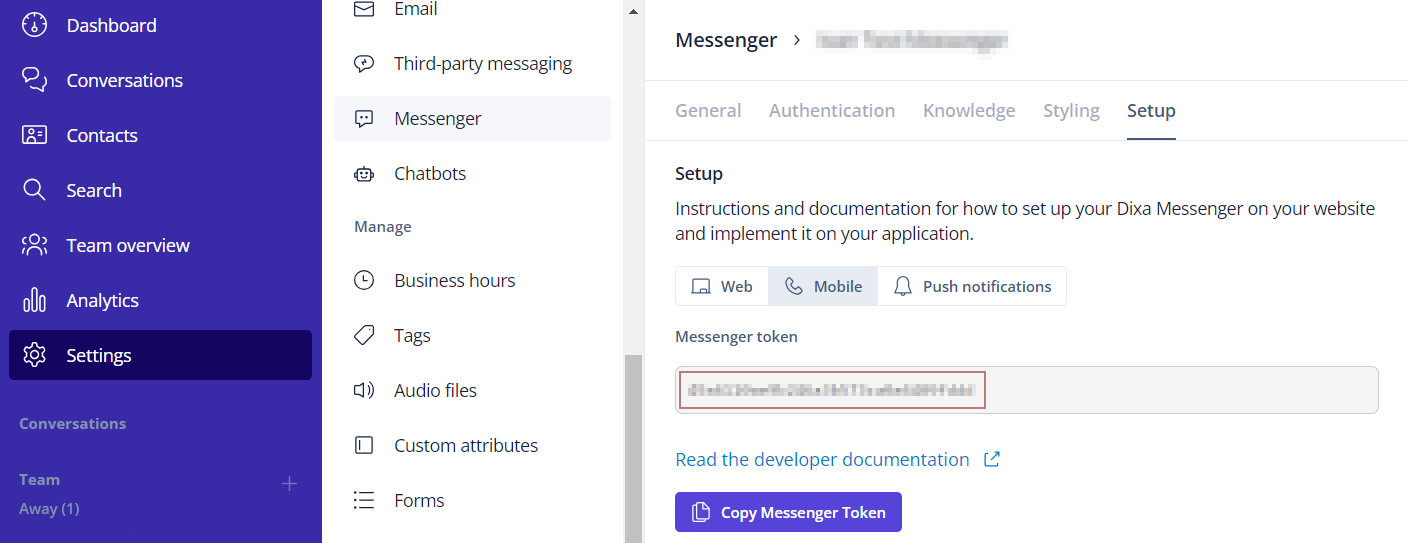
Call `init` before any other SDK method, and don't defer it. `Application.onCreate()` runs before your activities and your Firebase messaging service, so every later call finds the SDK ready. Calls made before `init` are ignored and logged, with three exceptions: `verifyUser` is kept and applied when `init` runs; `clearUserCredentials` and `clearVerificationToken` discard a token kept that way; and an unread messages listener is kept and receives count changes once `init` runs.
**Example**:
```kotlin
class ApplicationSubclass : Application() {
override fun onCreate() {
super.onCreate()
// Create configuration
val config = DixaMessenger.Configuration.Builder()
.setApiKey("")
.build()
// Initialize DixaMessenger with the configuration
DixaMessenger.init(config, this)
}
}
```
## Configuration
The configuration is created with `DixaMessenger.Configuration.Builder`: chain the options, then call `build()`.
| Builder method | What it sets | Default |
| --- | --- | --- |
| `setApiKey(String)` | Your Messenger token. Required: `build()` throws an `IllegalStateException` without it | – |
| `setPreferredLanguage(String)` | The Messenger's language, as a two-letter code. See [Language](#language) | The device's language |
| `setLogLevel(LogLevel)` | How much the SDK logs. See [Log level](#log-level) | `LogLevel.ERROR` |
| `setPushNotificationIcon(Int)` | A drawable for the push notification's small icon | The Dixa logo |
| `setUserCredentials(String, String)` | A claimed identity at app start. See [Authentication](#authentication) | Anonymous |
| `setVerificationToken(String)` | A verified identity at app start. See [Authentication](#authentication) | Anonymous |
**Example**:
```kotlin
val config = DixaMessenger.Configuration.Builder()
.setApiKey("")
.setPreferredLanguage("es")
.setLogLevel(LogLevel.WARNING)
.setPushNotificationIcon(R.drawable.ic_notification)
.build()
DixaMessenger.init(config, this)
```
To change the configuration after `init`, for example to switch to another Messenger token, pass a new configuration to `DixaMessenger.configure(config)`.
### Language
The Messenger uses the languages set in the Dixa Dashboard under `Settings > Messenger > (your messenger) > General`. Without a preferred language, it uses the device's language if the dashboard supports it, and the dashboard's default language otherwise.
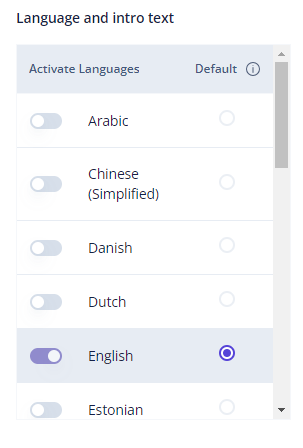
`setPreferredLanguage` sets the language regardless of the device. Use a two-letter ISO 639-1 code that the dashboard supports; otherwise the Messenger uses the default language.
> ⚠️ **_Important Note_**: Adjusting the language via the SDK will also modify the locale settings of the host application. This is because the SDK utilizes the [Locale#setDefault(Locale)]() and the [Configuration#setLocale(Locale)]() APIs to enforce language changes. Exercise caution, as this may affect the overall behavior and appearance of your application beyond the Dixa Messenger functionality.
### Log level
| Level | What's logged |
| --- | --- |
| `LogLevel.NONE` | Nothing |
| `LogLevel.ERROR` (default) | Critical errors only |
| `LogLevel.WARNING` | Warnings and errors |
| `LogLevel.ALL` | Everything: use it while developing |
Set it with `setLogLevel` on the Builder, as in the example above. To filter the SDK's logs in Logcat, search for the `DixaLog` tag.
## Authentication
You can decide to have your users identified. The SDK supports three authentication modes:
| Mode | How the user is identified |
| --- | --- |
| **Anonymous** (default) | Not identified. No user information is shared with the agent |
| **Claimed** | A name and email supplied by your app. Users can enter any name and email, so don't rely on it where identity matters |
| **Verified** | A JSON Web Encryption (JWE) token encrypted with a private key from the Dixa Dashboard |
### Choosing the method in the Dixa Dashboard
In the Dixa Dashboard, under `Settings > Messenger > (your messenger) > Authentication`, **Select a method** sets how users must be identified before they can start a chat:
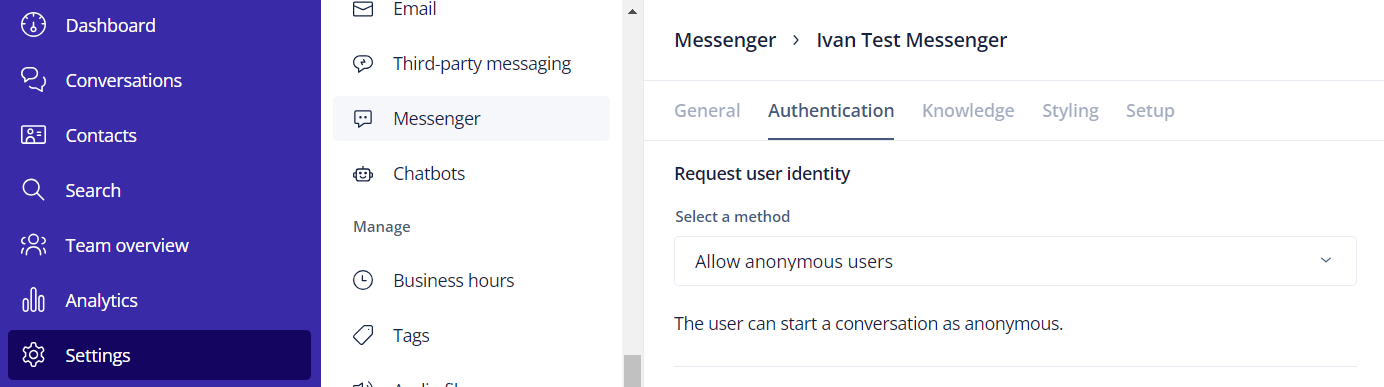
| Method in the dashboard | If your app hasn't identified the user |
| --- | --- |
| Allow anonymous users | Everyone can chat |
| Allow users to claim their identity | The SDK shows a form that asks for a name and email |
| Programmatically authenticate the users | The user can't start a chat |
So identify the user before they open the Messenger.
### Claimed
| Method | What it does |
| --- | --- |
| `DixaMessenger.updateUserCredentials(name, email)` | Stores the user's name and email. Returns a `SetCredentialResult` |
| `DixaMessenger.clearUserCredentials()` | Removes them, and the user's conversation history on the device |
**Example**:
```kotlin
when (DixaMessenger.updateUserCredentials("user-name", "email")) {
SetCredentialResult.SUCCESS -> Unit // Stored. A different name or email starts a new session.
SetCredentialResult.FAILURE_ALREADY_CLAIMED -> Unit // The same name and email are already stored.
SetCredentialResult.FAILURE_DOWNGRADE -> Unit // A verification token is stored, so claimed credentials are ignored.
SetCredentialResult.FAILURE_NOT_PROVIDED -> Unit // The name or email was empty.
}
```
### Verified
| Method | What it does |
| --- | --- |
| `DixaMessenger.verifyUser(token)` | Stores the user's JWE token. Returns a `SetVerificationTokenResult` |
| `DixaMessenger.clearVerificationToken()` | Removes it, and the user's conversation history on the device |
Call `verifyUser` again with the new token when the token is refreshed: a new token for the same user keeps the user's conversation history.
**Example**:
```kotlin
when (DixaMessenger.verifyUser("JWE-token")) {
SetVerificationTokenResult.SUCCESS -> Unit // Stored. It is sent when the Messenger connects.
SetVerificationTokenResult.FAILURE_ALREADY_VERIFIED -> Unit // The same token is already stored.
SetVerificationTokenResult.FAILURE_NOT_PROVIDED -> Unit // The token was empty.
}
```
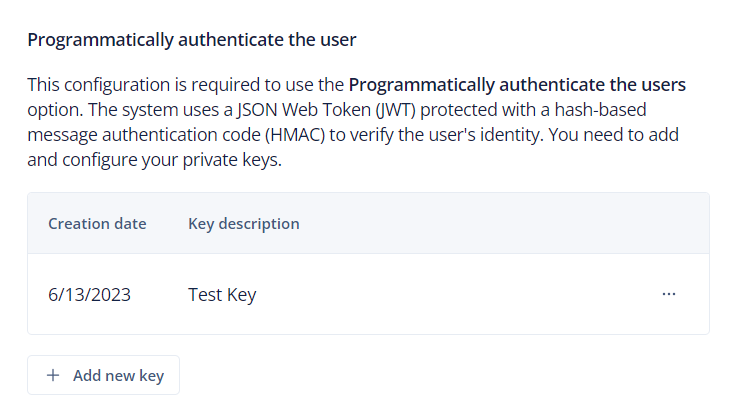
Your backend creates the JWE token, encrypted with a private key from the Dixa Dashboard under `Settings > Messenger > (your messenger) > Authentication`. The private key is a shared secret, not one half of a key pair: your backend encrypts the token with it and Dixa decrypts it with the same key. See [Generating a JWE token](https://docs.dixa.io/docs/dixamessenger/web/authentication.md#generating-a-jwe-token) for the steps.
### Identifying the user at app start
If you already know who the user is when the app starts, you can pass the identity in the configuration instead:
```kotlin
val config = DixaMessenger.Configuration.Builder()
.setApiKey("")
.setUserCredentials("user-name", "email") // Claimed
// or .setVerificationToken("JWE-token") // Verified
.build()
```
### Switching users or logging out
On devices shared by several end users, or when one user logs out and another logs in, the SDK keeps the previous identity until you clear it. To hand off to a new user:
1. On logout, clear both kinds of identity. Each clear method removes only its own kind, together with the conversation history on the device, so the next user can't read the previous user's conversations.
2. When the next user logs in, identify them with `updateUserCredentials` or `verifyUser`. You don't need to call `init` again.
```kotlin
// On logout from your app
DixaMessenger.clearUserCredentials()
DixaMessenger.clearVerificationToken()
```
## Launching the Messenger
Add a button to your app that opens the Messenger.
| Call | Presentation |
| --- | --- |
| `DixaMessenger.openMessenger(activity)` | A full-screen activity |
| `DixaMessenger.openMessengerSheet(activity, offsetPx)` | A modal bottom sheet ([BottomSheetDialogFragment](https://developer.android.com/reference/com/google/android/material/bottomsheet/BottomSheetDialogFragment)), `offsetPx` pixels from the top of the screen. The activity must be a `FragmentActivity`, such as an `AppCompatActivity` |
**Example (full screen)**:
```kotlin
findViewById